Get the APK and connect it
You install Aura from an APK, prebuilt or built from source. Either way the last step is the same. Point the app at your Mewbo server.
Get the APK
Download a release
Prebuilt APKs are published on the project's GitHub releases. Download the .apk asset from the latest release, copy it to your phone, and open it. Android asks permission to install from this source the first time.
Prerelease builds
These are prereleases signed for debugging, not Play Store releases, so they install directly from the APK file. Update by installing a newer APK over the top. Your server connection and chats survive an update.
Build from source
Aura is its own Gradle project under apps/mewbo_aura. You need the Android SDK installed, with ANDROID_HOME pointing at it. From that directory, build the public flavor.
./gradlew :app:assemblePublicDebug
The APK lands at app/build/outputs/apk/public/debug/app-public-debug.apk. Install it on a connected device with adb.
adb install -r app/build/outputs/apk/public/debug/app-public-debug.apk
Choose a build flavor
Aura builds in two flavors. They differ only in which TLS certificates the app trusts.
| Flavor | Trusts | Use it when |
|---|---|---|
| public | Standard system certificate authorities only | Your server presents a certificate signed by a public certificate authority. This is the default, and the only flavor built by continuous integration. |
| enterprise | System authorities plus a private certificate authority you provide | Your organization runs a self-hosted server behind a certificate from its own internal certificate authority, or reaches it over a local network without TLS. |
The enterprise flavor bundles a private root certificate at build time, supplied by whoever builds the app for the organization. That certificate is never hardcoded into the public build.
Not sure which flavor?
Open your server's https:// address in your phone's browser. No certificate warning means public. A warning means your organization needs enterprise, with its own certificate authority added to the build.
Connect to your server
On first launch the chat greeting reads No backend configured, open Settings. Open Settings from the gear icon in the navigation drawer.
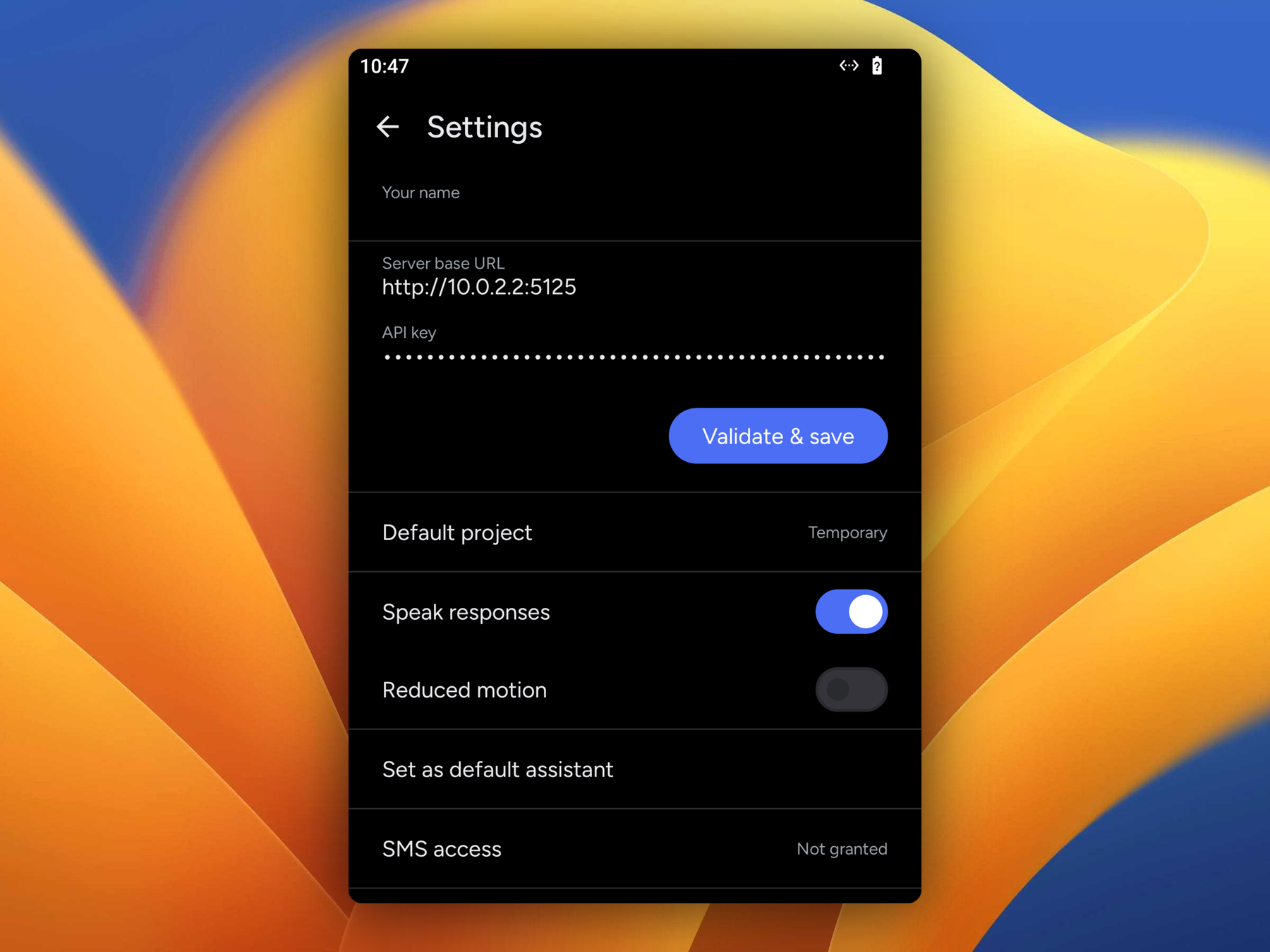
- Enter your server base URL, the address of your Mewbo API server. For example
https://mewbo.example.com. - Enter the API key you issued from the console. The field is masked.
- Tap Validate & save. Aura makes a live request to confirm the URL and key work before it stores anything.
On success you see the number of models your server offers, and both fields are saved. On failure nothing is saved and an inline message names the cause, usually an invalid key, an unreachable host, a timeout, or a malformed URL. That message also offers Save anyway, so you can configure the app before the server is up.
Where the key is stored
Your API key is encrypted at rest on the device before it is written to storage. It is sent to your server on each request, and nowhere else.
Once the connection is saved, go back to the chat screen and send your first message. See Chat and Sessions, or Voice to set up voice control.