Let a session use your phone
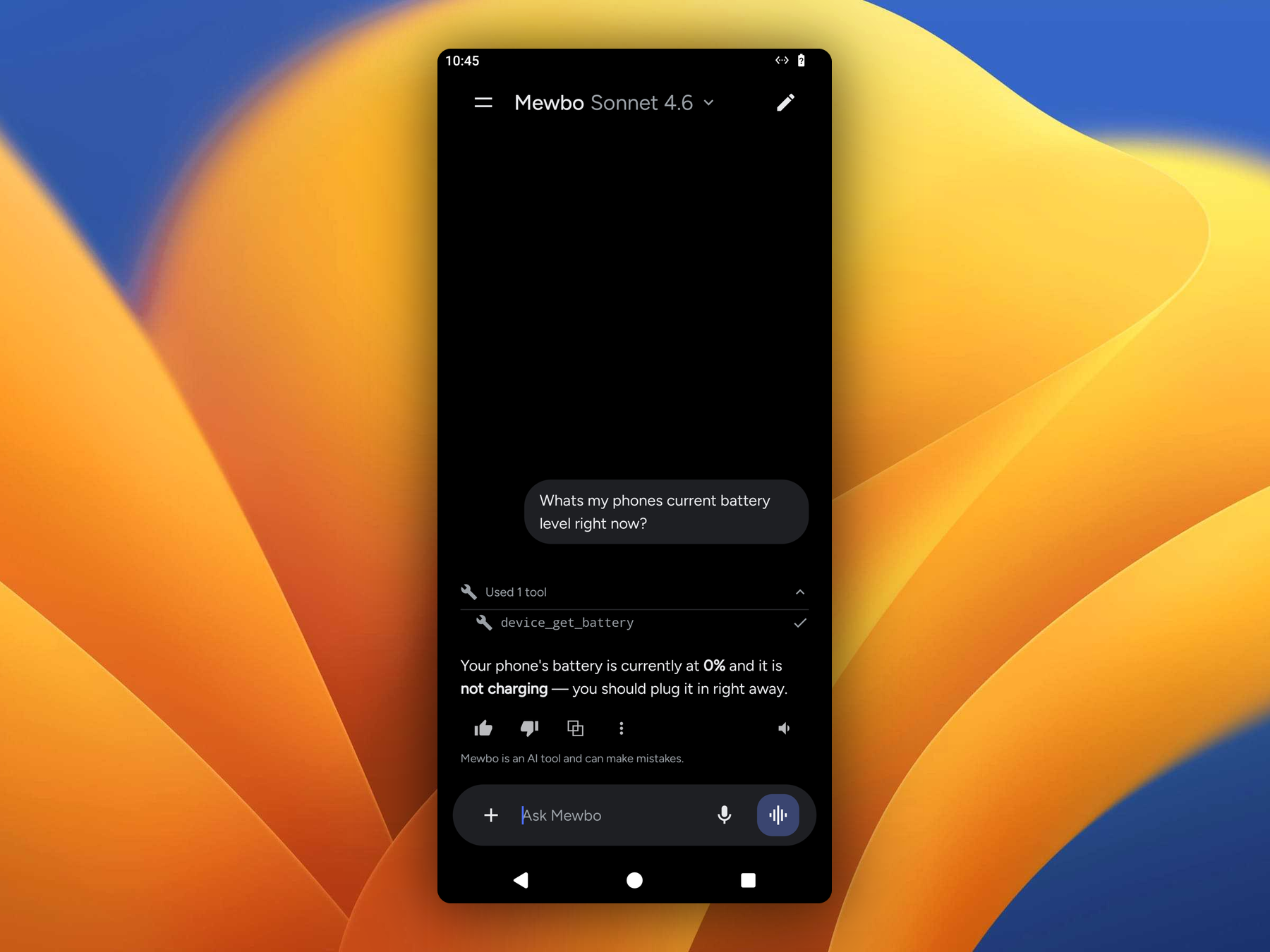
Aura lets the assistant take real actions on your phone. During a conversation it can check the time and battery, set alarms and timers, get your attention, and read or send text messages.
It can also see your screen and use it, so you can ask for something that takes several steps in another app. That part is off until you turn it on, and it needs a separate app called Shizuku. Screen control covers what it needs and how to start it.
How a device tool call works
Nothing runs on the phone unless the assistant asks for it during a live conversation. When a session starts, Aura tells the server which device tools it can offer, and that list depends on what your phone currently allows. The server delivers a call down the session's live stream, Aura runs it locally, and Aura posts the result back. The Device Tool Bridge owns that wire contract.
Whichever surface is following the conversation runs the call, so a question asked from the assist overlay is served exactly as it is in the app.
Set alarm, set timer, and dismiss alarm are the one exception. Each hands a job to the clock app, so they need Aura on screen, either as the app or as the assist overlay. Android only lets an app open another app's screen while it stays visible.
Permissions are the only gate
What your phone permits is exactly what the assistant can reach.
- There is no separate consent screen inside the app, no allowlist, and no extra confirmation layer. Aura adds no approval step on top of Android.
- A tool that needs a permission you have not granted is not offered to the server. The assistant cannot call a tool it was never told about.
- Granting the Android permission enables the tool. Revoking it takes the tool away again.
Only messaging and screen control need a permission. Grant the Android SMS permissions from Aura's Settings, or by accepting the system prompt when it appears. Screen control asks for its permission through Shizuku instead, which works the same way: without the grant, the tools are not offered.
You are in control through Android
Manage what the assistant can reach the same way you manage any app, in Android's own permission settings.
Available tools
The catalog of every tool this build carries lives in DeviceToolCatalog.kt.
| Tool | What it does | Permission |
|---|---|---|
| Get time | Reports the phone's current local date, time, and timezone. | None |
| Get battery | Reports the battery level and whether the phone is charging. | None |
| Set alarm | Asks the phone's clock app to set an alarm for a given time. | None |
| Set timer | Asks the phone's clock app to start a countdown timer. | None |
| Get next alarm | Reports the single next alarm scheduled to fire. Android only exposes the soonest one, not every alarm. | None |
| Dismiss alarm | Asks the clock app to dismiss an alarm by time, by label, the next one, or all of them. | None |
| Wake | Rings and vibrates the phone briefly to get your attention. | None |
| Read latest texts | Reads your most recent incoming text messages, optionally filtered by sender. | Read SMS |
| Send a text | Sends a text message to a recipient. | Send SMS |
| Take and release control | Asks for control of the screen, then hands it back. The three tools below refuse until control is active. | Screen control |
| See the screen | Lists what is on screen, or takes a screenshot. | Shizuku |
| Tap, swipe and type | Taps an element, swipes, types text, presses back or home, or opens an app. | Shizuku |
| Run shell commands | Runs a command on the phone at the shell account's level of access. | Shizuku |
Sending a text is irreversible
The Send a text tool sends a real SMS, which cannot be recalled and may cost money through your carrier. Never grant the Android Send SMS permission and the assistant is never offered the tool.
Screen control
Screen control is what lets you ask for a whole task rather than a single fact. Opening an app, finding a setting, filling something in: the assistant looks at what is on screen, acts on it, then looks again.
It works differently from the other tools, in three ways worth knowing before you turn it on.
It needs Shizuku, and Shizuku needs restarting after every reboot
Android does not let an ordinary app touch other apps' screens. Shizuku is a separate free app that grants that access, using Android's own wireless debugging. You install it once and start it from inside it.
Unless your phone is rooted, the Shizuku service stops every time your phone restarts, and you start it again from the Shizuku app. This is how Shizuku works and Aura cannot change it.
You do not have to remember which state you are in. Aura's Settings shows it under Screen control:
| What Settings shows | What to do |
|---|---|
| Needs Shizuku | Install the Shizuku app. |
| Start Shizuku | Open Shizuku and start the service. This is the state after a restart. |
| Tap to allow | Tap the row to give Aura access. |
| Ready | Nothing. Screen control is available. |
When it is not ready, the assistant is simply not told these tools exist. It cannot try and fail, and it will tell you it cannot see your screen rather than guessing.
It starts switched off
The other nine tools are on by default. These three are not, because they are a different kind of thing: they act on your phone directly and they read whatever is on screen while they work. Turn on the ones you want in Settings, under Screen control. Running shell commands has its own switch, separate from the other two. Taking and releasing control has no switch of its own; it comes with them.
Watch it while it works
Screen control only runs while a conversation is live and Aura is following it, so you can see what is happening and stop it. Treat it the way you would treat handing someone your unlocked phone.
Control is asked for, never assumed. The assistant takes it when it needs the screen and releases it as soon as the task is done. While it is held, the screen glows around its edges and a notification sits in your shade, each carrying a Stop that ends it at once.
Two things to keep in mind. The assistant reads what is on your screen, so anything visible while it works, including a message or a notification, is something it can see. And text on screen is only ever information to it, never an instruction, no matter what that text says.
Shell commands are powerful
The shell tool runs commands at the same level of access a computer has over USB debugging. Aura refuses the commands whose damage cannot be undone by watching and stopping, such as uninstalling apps or restarting the phone. Leave this switch off unless you want it.
Next steps
- Chat and Sessions. Where tool activity appears during a conversation.
- Device Tool Bridge. How the server delivers these calls to the app.